You can create an online course on iPhone or Android from start to finish: chapters, lessons, video uploads, a drip schedule, a price and a checkout. The WithMe creator app does all of it natively, so the phone you film on is also the phone you build and sell the course from.
This guide walks through planning the course, building it in the app, recording lessons, releasing them on a schedule and launching. It also covers the few things you still do on the web, and how to get set up.
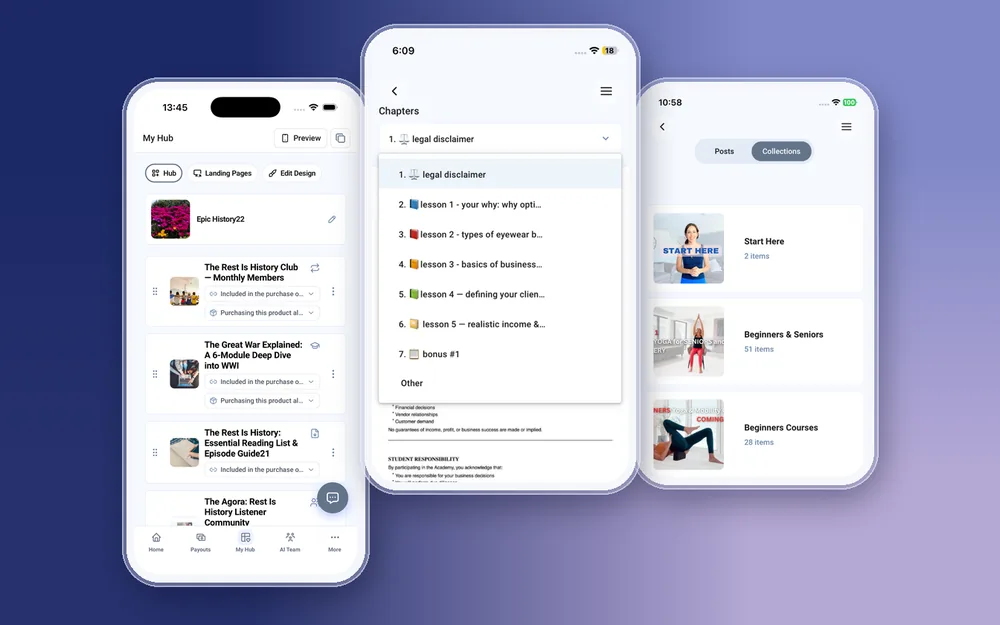
Can you really build a whole course on your phone?
Yes. In WithMe: The Creator App on iOS and Android, a course is the same product you would build on a laptop. From the app you can:
- Add, edit, reorder and delete chapters and lessons.
- Upload lesson video, audio, PDFs and images from your camera roll or files. Large videos upload in chunks, so a long lesson does not have to go up in one piece.
- Set a drip schedule so lessons open over days or weeks after someone buys.
- Set the price and add checkout questions, such as a goal or experience level, that buyers answer when they pay.
- Tap Preview to see your hub as a visitor or a customer sees it before you share the link.
How should you plan a course before you open the app?
Ten minutes of planning saves an hour of rearranging. Write these down in your notes app first:
- The result: one sentence on what a student can do by the end.
- The chapters: three to six stages, each with one clear outcome, such as Week 1: Foundations.
- The lessons inside each chapter, one idea per lesson. Short lessons are easier to film on a phone and easier to finish.
- What each lesson needs: a video, a worksheet PDF, an audio version or a few images.
How do you build the course in the WithMe app?
Once you are signed in, the structure takes a few minutes to set up, before any filming.
- Create a new course from the app and give it a working title and a short description.
- Add your chapters in the order you planned. You can reorder them later, so the first draft does not need to be perfect.
- Add lessons inside each chapter and give each one a short, specific title.
- Attach the content to each lesson: upload the video, write the text and add any PDF, audio or images.
- Set the price, and add checkout questions if you want to know something about each buyer.
- Tap Preview to check it as a customer would see it, then publish and the course appears on your hub.
How do you record course lessons on a phone?
Film near a window or a soft light, with a clip-on microphone if you have one, and keep the phone steady on a stand. Keep each lesson to one idea, often five to ten minutes. If a take goes wrong, record that lesson again rather than editing a long video.
There is no separate upload step on a computer. Record in the camera app, trim if needed, then upload the file to the lesson from the WithMe app. Worksheets made in a notes or document app go in as PDFs the same way.
Should you drip lessons or release them all at once?
Drip suits courses with a weekly rhythm, such as an eight-week program where week 2 opens a week after week 1. It keeps students moving together and stops them rushing ahead. Release everything at once for reference courses and short tutorials, where people want to jump to the lesson they need. You can set or change the drip schedule from the app at any time.
How do you launch and sell the course from your phone?
The course is on your hub as soon as it is published. From the same app you can:
- Create a landing page for the course and publish it, or move it onto your hub.
- Send an email broadcast to your list, or set up a sequence that follows up over the next few days.
- Set up an Instagram Auto DM so anyone who comments a keyword on your post gets the course link in their DMs.
- Create a promo code for launch week, then watch income and leads on the Home tab, with a push notification for your first sale.
What do you still do on the web?
Creating your account and starting the trial happen on the web, as do billing and plan changes. Connecting Zoom or Google Meet, API keys, webhooks and tracking pixels are also set up on the web. Building, uploading and selling the course itself all works in the app.
How to get started
- Go to the WithMe sales page at withme.so/become-a-creator and start your 14-day trial on the web.
- Download WithMe: The Creator App from the App Store on iPhone or Google Play on Android.
- Sign in with the same account. The creator tabs open automatically: Home, Payouts, My Hub, AI Team and More.

WithMe is $25 per month billed annually (UK £25), with 0% WithMe commission on your course sales. Stripe and PayPal fees still apply. Your students also get the WithMe app on iOS and Android with every hub, so they can watch lessons on their phone too.
Creating a course on your phone: questions
Can I create an online course entirely on my iPhone?
Yes, once your account exists. You can add chapters and lessons, upload video and files, set drip, price and checkout questions, preview and publish from the WithMe app on iPhone. The account itself is created on the web first.
Does the course builder work the same on Android?
Yes. WithMe: The Creator App is on Google Play with the same course tools as the iOS version, including chunked video uploads and drip schedules.
How long can course videos be?
Large video files upload in chunks from the app, so long lessons work. Lessons of five to ten minutes are still easier for students to finish.
Can I edit a course after it is live?
Yes. You can add, edit, reorder or delete chapters and lessons, change the drip schedule and update the price from the app at any time.
Do my students need a computer to take the course?
No. Students can take the course on the web or in the WithMe app on iOS and Android, which is included with every hub.
Start your 14-day trial at https://www.withme.so/become-a-creator.